What to Do When an Employee Leaves: An IT Offboarding Checklist
Block the account and revoke sessions first, within minutes, not days. Everything else follows in order. Here's the full checklist for Microsoft 365 and Google Workspace.
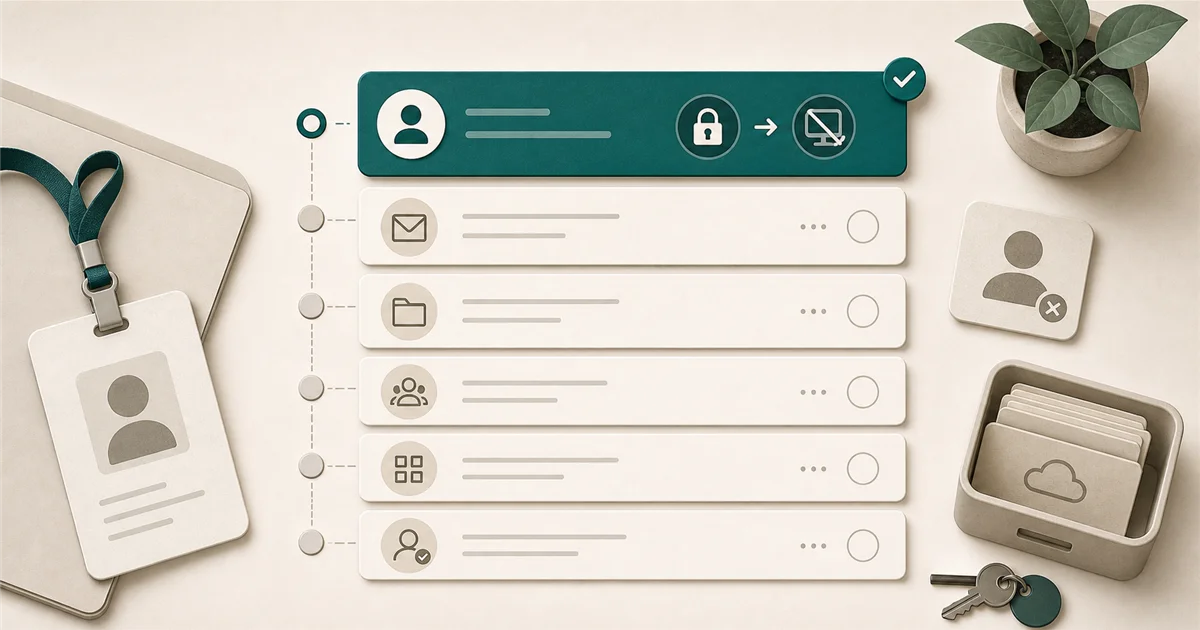
When an employee leaves, whether they resign or are let go, the IT steps can get rushed or forgotten in the middle of everything else happening that day. The most common mistake is doing them in the wrong order.
Most likely causes
Most IT offboarding problems trace back to one of three oversights:
Access blocked too late. The business forwards the email first, tells the team, then blocks the account two days later. During that window, an unhappy former employee still has access to company files, email, and systems.
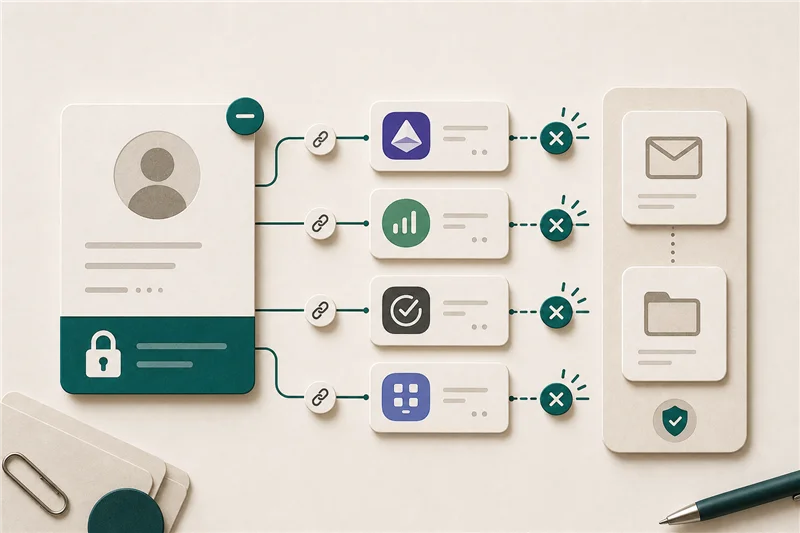
Third-party app access never revoked. The employee’s Microsoft 365 or Google account gets blocked, but their login for Slack, Zoom, Dropbox, Salesforce, or DocuSign is still active. These connections often persist for months.
Data not secured before account closure. Files in the employee’s OneDrive, emails the business needs for a client matter, or work-in-progress documents disappear when the account is deleted without a proper handoff.
What to check first, in order
This sequence matters. Do not skip to step 3 before completing steps 1 and 2.
For involuntary terminations: Steps 1-4 should happen before or during the termination conversation. Once the conversation is over, assume the person knows and has motivation to act quickly.
For voluntary resignations: You have more time, but still complete step 1 on the final day, not a week later.
Step 1: Block sign-in and revoke active sessions.
Microsoft 365:
- Sign in to admin.microsoft.com
- Go to Users > Active users, select the departing employee
- Select Block sign-in. This prevents new logins
- Select Revoke all sessions. This signs out all currently active devices
Google Workspace:
- Sign in to admin.google.com
- Go to Directory > Users, select the user
- Click Suspend user. This prevents sign-in immediately
Step 2: Reset the password. Change the account password to something long and random. Store it in your password manager. This ensures that even if the session revocation missed a device, the old password won’t work.
Step 3: Handle the email.
You have two main options:
- Set up email forwarding: Route incoming email to a manager or colleague for 30-90 days.
- Convert to a shared mailbox (Microsoft 365 only): This lets other licensed users access the mailbox without paying for a separate license. A shared mailbox in Microsoft 365 does not require its own license as long as it’s accessed by already-licensed users. This is worth knowing if you want to keep the archive available long-term.
For Google Workspace, you can transfer ownership of the Drive files and set an out-of-office reply before deleting or archiving the account.
Step 4: Secure files and data.
Microsoft 365: In the admin center, go to the user’s account and transfer their OneDrive files to a manager. You have 30 days after account deletion before OneDrive data is removed.
Google Workspace: Transfer Drive and Gmail data to another account before suspending.
Step 5: Remove from groups, Teams channels, and distribution lists.
A blocked account often remains visible in Teams channels and email distribution lists. Clean this up so the name doesn’t appear to internal staff or, worse, in client communications.
Step 6: Revoke third-party app access.
This is the most commonly missed step. The employee’s Microsoft or Google account may have authorized dozens of third-party applications: Slack, Zoom, Dropbox, Salesforce, DocuSign, project management tools, etc.
Microsoft 365: Go to myapps.microsoft.com (as an admin reviewing the user’s account, or check via the Azure portal under the user’s App Registrations/Enterprise Applications > User permissions).
Google Workspace: Admin Console > Security > API Controls > Manage Third-Party App Access, or check under the user’s account for connected apps.
Any application that was authorized under the departed employee’s credentials should be reviewed. Some of these, like a Slack workspace they were added to, require removing them directly within that tool.
Step 7: Remove the license.
Once the mailbox has been converted to shared (or the data period has passed), remove the Microsoft 365 or Google Workspace license. This stops the billing for that seat.
The BYOD question (personal devices)
Many small businesses under 25 employees don’t have Intune or any mobile device management (MDM) enrolled. If the employee used a personal phone or laptop for work, the options are more limited:
- If they used Microsoft 365 or Google Workspace on a personal device, their account access is revoked in step 1. The apps on the device stop working.
- If they had company files saved locally on a personal device, you have less control over those files once access is revoked.
- If you do have Intune enrolled: selective wipe removes company data from a personal device without wiping personal content.
For most small businesses without MDM, the practical answer is: revoke account access, change passwords on any shared accounts they had access to, and document what data they may have had locally.
When to escalate
Get outside IT help if:
- The employee had admin access to Microsoft 365, Google Workspace, or any cloud services
- You’re unsure what third-party tools they had access to and can’t audit it yourself
- The departure is contentious and you want a documented record of the access revocation steps
- The employee had access to financial accounts, payroll systems, or client data under a personal login
How to prevent it next time
Create an offboarding checklist now, before you need it. A short document that walks any manager through these steps takes 30 minutes to build and makes every future departure go more smoothly.
Use a shared password manager for company accounts. If every shared credential (vendor portals, social media, billing accounts) lives in a team vault, revoking a departing employee’s access is a single step: remove them from the vault.
Review third-party app permissions quarterly. A 15-minute check of authorized apps in your Microsoft 365 or Google Workspace admin console catches stale connections before an offboarding makes them urgent.
Sources
More from the journal
Keep reading the surrounding signals
Why Outlook Keeps Asking for Your Password (and How to Stop It)
Repeated Outlook password prompts are almost always caused by stale saved credentials or an outdated sign-in method — both fixable in minutes.
Read note
How to Recognize and Respond to a Phishing Attack
The first 60 minutes after a suspected phishing click matter most. Block the account, revoke sessions, change the password, in that order.
Read note
What Laptops Should a Small Business Buy in 2026?
Spend $900-$1,400 per laptop for most office roles. The MacBook Air M5 and Lenovo ThinkPad X1 Carbon are the two strongest picks at this price range.
Read note