Why Outlook Keeps Asking for Your Password (and How to Stop It)
Repeated Outlook password prompts are almost always caused by stale saved credentials or an outdated sign-in method — both fixable in minutes.
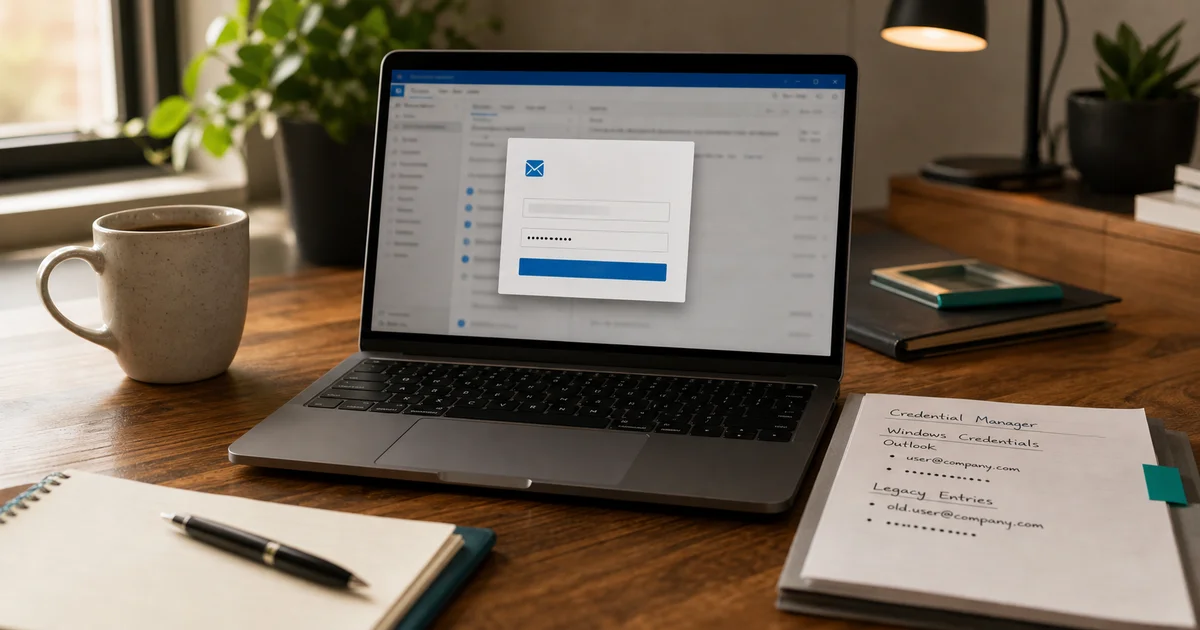
Outlook is asking for your password again. You type it in, click OK, and a few minutes later the box pops up again. This is one of the most common tech complaints in small offices, and it almost always has a fixable software cause — not a hardware problem, not a forgotten password.
Most likely causes
The password loop usually starts with one of three things:
Stale saved credentials. Windows remembers your old password even after it changes. When Outlook tries to use the saved version and Microsoft rejects it, the prompt appears again and again.
An outdated sign-in method. Microsoft 365 uses a modern login method called OAuth 2.0 — think of it as a secure token that keeps you signed in without re-entering your password. Microsoft began retiring the older, less secure method in October 2022. Older Outlook versions (pre-2016) or certain PC settings can still force that old method, causing a constant prompt loop.
A damaged Outlook profile. Less common, but Outlook stores your account information in a profile file that can get corrupted over time, causing it to forget your credentials entirely.
What to check first
Work through these steps in order. Most people find the fix at step 1 or 2.
Step 1 — Clear saved Microsoft credentials (3 minutes)
Windows stores passwords in a tool called Credential Manager. If it’s holding an old password, clearing it forces a clean sign-in.
- Open the Start menu and search for Credential Manager
- Click Windows Credentials
- Find any entries that start with MicrosoftOffice or Microsoft
- Click each one and select Remove
- Restart Outlook and sign in when prompted
This resolves the problem for most users.
Step 2 — Check the “Always prompt” setting in Outlook
- In Outlook, go to File > Account Settings > Account Settings
- Select your email account, click Change, then More Settings
- Open the Security tab
- Make sure “Always prompt for logon credentials” is unchecked
- Click OK and restart Outlook
Step 3 — Remove and re-add your email account
If neither step worked:
- Go to File > Account Settings > Account Settings
- Select your account and click Remove
- Restart Outlook
- Return to Account Settings and click Add to set the account up fresh
Outlook will walk you through a clean sign-in. This clears any configuration issues that accumulated on the old account entry.
Step 4 — Create a new Outlook profile
If you’ve tried all of the above and the loop persists, the profile itself is likely damaged.
- Close Outlook completely
- Search the Start menu for Control Panel, then open Mail
- Click Show Profiles > Add and give the new profile a name
- Set it as the default and open Outlook
- Sign in fresh when prompted
When to escalate
If your computer is managed by an IT administrator — it’s joined to a company network, or you see IT-branded login screens — some of these fixes may not stick. A Group Policy setting (a rule enforced by IT across all company computers) can override your local changes. In that case, pass these steps to whoever manages IT and ask them to apply the fix on the backend.
If you’re running Outlook 2013 or older, upgrading is the most permanent solution. Those versions were not designed for today’s Microsoft 365 login requirements, and the prompt loop will keep coming back.
Microsoft also offers a free diagnostic tool called the Support and Recovery Assistant (SaRA) that can find and fix Outlook problems automatically. It’s worth running before escalating to paid IT help.
How to prevent it next time
- Keep Outlook and Windows updated so the sign-in method stays current
- After changing your Microsoft 365 password, open Credential Manager immediately and remove the old saved entry
- Make sure everyone in the office uses Outlook 2016 or newer — all Microsoft 365 Business plans include a current version
Sources
More from the journal
Keep reading the surrounding signals
What to Do When an Employee Leaves: An IT Offboarding Checklist
Block the account and revoke sessions first, within minutes, not days. Everything else follows in order. Here's the full checklist for Microsoft 365 and Google Workspace.
Read note
How to Recognize and Respond to a Phishing Attack
The first 60 minutes after a suspected phishing click matter most. Block the account, revoke sessions, change the password, in that order.
Read note
What Laptops Should a Small Business Buy in 2026?
Spend $900-$1,400 per laptop for most office roles. The MacBook Air M5 and Lenovo ThinkPad X1 Carbon are the two strongest picks at this price range.
Read note