How to Recognize and Respond to a Phishing Attack
The first 60 minutes after a suspected phishing click matter most. Block the account, revoke sessions, change the password, in that order.
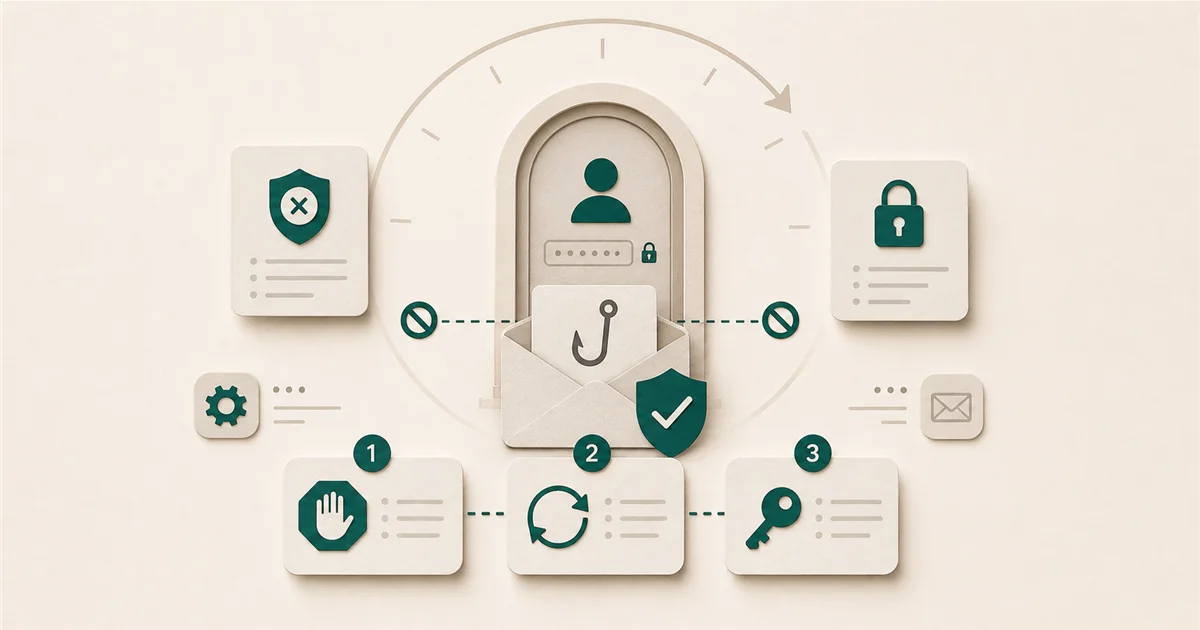
Phishing is the most common way a small business gets compromised, not because of sophisticated hacking, but because someone clicks a link, enters their password on a fake login page, and doesn’t report it until the damage is done.
The first 60 minutes matter more than most people realize.
Most likely causes
What phishing actually looks like in 2026.
Phishing emails no longer rely on bad grammar and misspellings to fool people. AI-generated language has made them convincingly professional. In a 2026 survey, 72% of workers reported that phishing attempts are more convincing than they were a year ago.
Common signals to watch for:
- Unexpected urgency. “Your account will be suspended in 24 hours.” “Verify your identity immediately.” Real IT departments rarely demand urgent action over email.
- A sender address that’s almost right.
support@m1crosoft.comorbilling@company-name.security-alert.com. The domain in the address (after the @) is what matters, not the display name. If you are suspicious of a domain, you can scan it instantly with our Email Health Check or check details using our WHOIS Lookup and Blacklist Check. - Links that go somewhere different than they appear. Hover over a link (on desktop) before clicking. If the URL doesn’t match the company it claims to be from, don’t click.
- Requests for credentials, payment changes, or wire transfers. Legitimate services don’t ask for your password over email. Finance requests from a “CEO” or “CFO” that arrive by email, especially with urgency, are a common variant (business email compromise).
Spear phishing, a targeted attack using personal details about you or your company, is increasingly common for SMBs, particularly around tax season, hiring announcements, or contract activity visible on LinkedIn. These are harder to spot because they reference real context. Mention it to your team so they know the pattern exists.
What to check first
The response depends on what actually happened.
“I clicked a link but didn’t enter anything.” This is the most common scenario and also the most under-reported. Employees often don’t say anything because they think it was harmless. It may have been harmless, but it may also have silently downloaded something. The right response: report it to your IT contact or MSP so they can check the device, and note the URL that was visited.
“I entered my password on a site that looked legitimate.” Treat this as a confirmed compromise. Act immediately.
“I downloaded an attachment.” Disconnect the device from the network (unplug ethernet, turn off Wi-Fi) and contact IT before doing anything else.
The first-hour response checklist for a confirmed compromise:
-
Block the account from the admin side. In Microsoft 365, go to the admin center, find the user, and block sign-in. In Google Workspace, go to Admin Console and suspend the user. Do this before signing out of the current session because signing out can destroy session logs that your IT team needs.
-
Revoke active sessions. In Microsoft 365 admin center, you can revoke all active sessions for a user. This signs out every device currently logged in to that account.
-
Change the password. Once the account is blocked and sessions are revoked, reset the password to something new. Use a password manager to generate a strong one.
-
Enable MFA if it wasn’t already on. Even if someone has the new password, they can’t sign in without the second factor. CISA reports MFA blocks 99.9% of account compromise attempts.
-
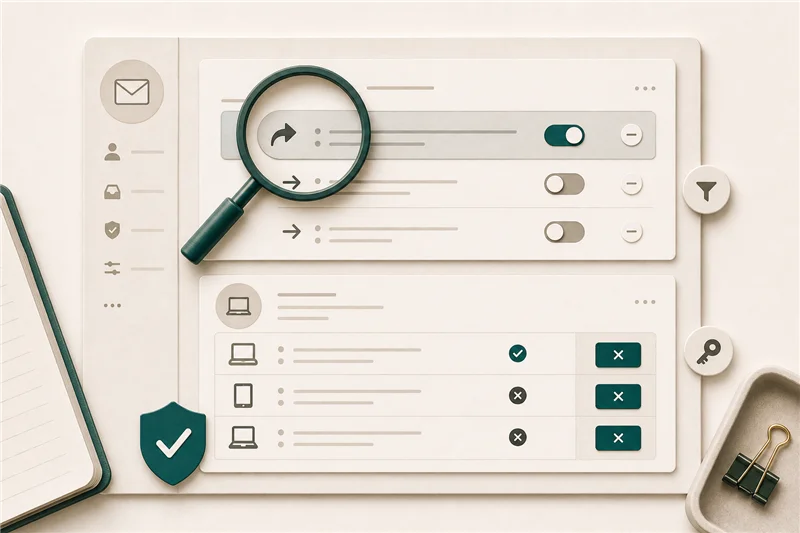
Check for forwarding rules. Attackers who access a mailbox often immediately create an email forwarding rule to an outside address so they continue to receive messages even after the password is changed. In Microsoft 365, go to the affected mailbox’s mail flow rules and delete anything unfamiliar.
-
Notify your IT contact or MSP. Get a professional involved before you declare the incident resolved. They can check logs, look for lateral movement (did the attacker access other accounts?), and help you decide if any external reporting is required.
When to escalate
Contact a cybersecurity professional or your MSP (managed service provider) if:
- The compromised account had access to financial accounts, payroll, or HR data
- You find forwarding rules, sent mail you didn’t send, or evidence the attacker took action in the account
- A device downloaded an attachment and you’re unsure what ran
- You believe a payment or wire transfer may have been initiated under the compromised account
Reporting: Forward phishing emails to your email provider:
- Microsoft 365:
phish@office365.microsoft.com - Google Workspace: use the Report Phishing option in Gmail
- FTC:
reportphishing@apwg.org
How to prevent it next time
Enable MFA everywhere. A stolen password with MFA enabled is useless to an attacker. This is the single highest-leverage step. If an employee clicks a phishing link and hands over their password, MFA stops the attacker from using it.
Run quarterly phishing simulation training. Commercial tools like KnowBe4 or Microsoft Attack Simulator send fake phishing emails to your team and measure click rates. Teams that run regular simulations significantly reduce real click rates over time.
Create a no-blame reporting culture. The biggest obstacle to incident response is employees who don’t report a click because they’re embarrassed. Make it explicit: reporting immediately is the right thing to do, and it will never be held against them.
Quick reference checklist (print or bookmark this):
- Block account from admin side
- Revoke all active sessions
- Change password
- Enable MFA if not on
- Check for email forwarding rules
- Notify IT contact / MSP
- Report to email provider and FTC if warranted
Sources
More from the journal
Keep reading the surrounding signals
Why Outlook Keeps Asking for Your Password (and How to Stop It)
Repeated Outlook password prompts are almost always caused by stale saved credentials or an outdated sign-in method — both fixable in minutes.
Read note
What to Do When an Employee Leaves: An IT Offboarding Checklist
Block the account and revoke sessions first, within minutes, not days. Everything else follows in order. Here's the full checklist for Microsoft 365 and Google Workspace.
Read note
What Laptops Should a Small Business Buy in 2026?
Spend $900-$1,400 per laptop for most office roles. The MacBook Air M5 and Lenovo ThinkPad X1 Carbon are the two strongest picks at this price range.
Read note