How to Set Up MFA for Your Whole Team Without Locking Everyone Out
Multi-factor authentication blocks 99.9% of account takeovers. Here's how to roll it out to a small team without the flood of help-desk calls.
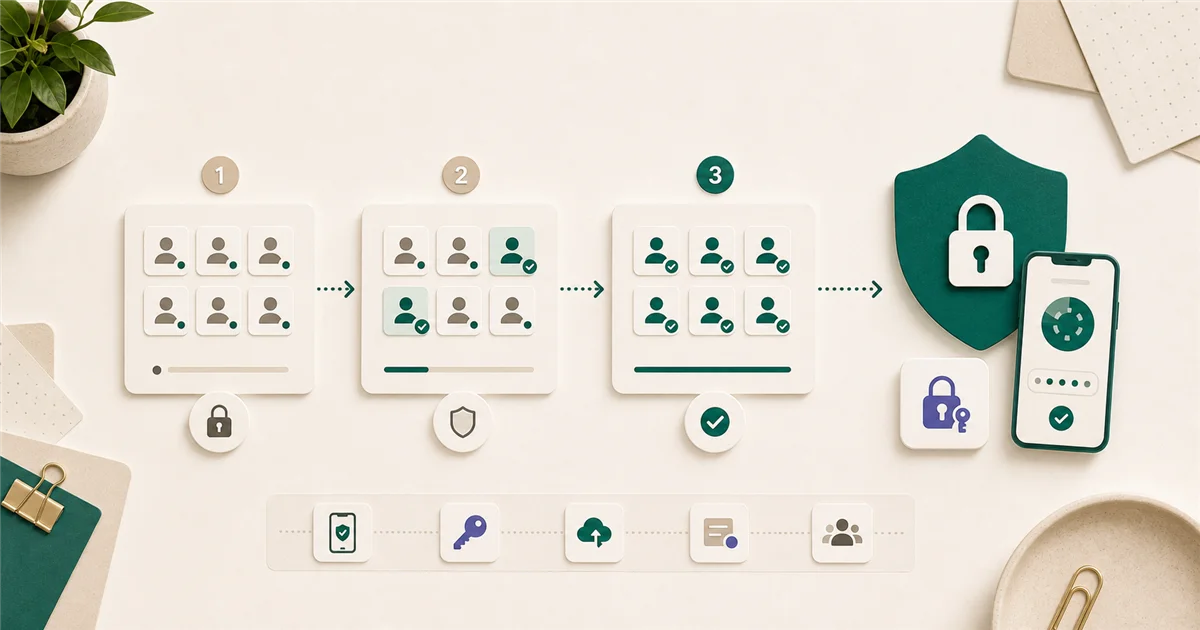
“How do we set up two-factor authentication for everyone without it turning into a support nightmare?” is one of the most common questions small business owners have about security. It is also one of the easiest to solve if you do it in the right order.
Short answer
Start with Microsoft Authenticator or Google Authenticator. Both are free and work on any smartphone. Enable MFA for yourself and one or two trusted people first, confirm everything works, then roll it out to the full team with advance notice and a short how-to guide.
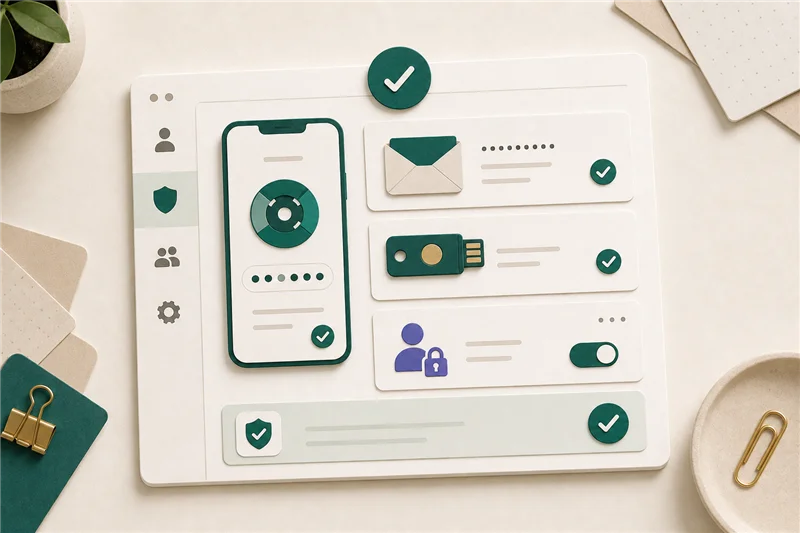
MFA (multi-factor authentication) means requiring a second step beyond a password when signing in. Even if someone’s password is stolen in a data breach, the attacker can’t get in without also having access to your phone. Microsoft reports MFA blocks 99.9% of account compromise attempts. It’s already included at no extra cost in Microsoft 365 and Google Workspace plans.
What MFA actually does
A password is something you know. MFA adds something you have (your phone) or something you are (a fingerprint or face scan). A stolen password is useless to an attacker who doesn’t also have your second factor.
The most common way an employee account gets taken over is through phishing: a fake login page that captures the real password. MFA doesn’t prevent the phishing click, but it makes the stolen password worthless.
Which type of MFA should you use?
SMS text codes: A six-digit code is sent to the user’s phone number. Better than nothing, but the weakest option. Phone numbers can be hijacked through a “SIM swap” attack (where a criminal convinces a mobile carrier to transfer your number to their phone). The National Institute of Standards and Technology (NIST) has advised against relying on SMS as the only second factor.
Authenticator app (recommended): An app on the phone generates a new six-digit code every 30 seconds. Microsoft Authenticator and Google Authenticator are both free and work with Microsoft 365, Google Workspace, and most business tools. This is the right default for most small teams.
Hardware security key or passkey: A physical USB key (like a YubiKey) or a built-in biometric passkey stored on the phone. Strongest option, and supported by Microsoft 365, Google Workspace, and most major business apps as of 2026. Worth requiring for your most sensitive accounts: your email admin, your bank login, your payroll system.
How to turn it on: Microsoft 365
The fastest path for teams that haven’t configured advanced settings is Security Defaults in the Microsoft 365 admin center.
- Sign in to admin.microsoft.com with a global admin account.
- Go to Identity > Overview > Properties.
- Select Manage Security Defaults.
- Set the toggle to Enabled.
Security Defaults automatically requires MFA for all users and disables legacy authentication protocols (older email clients that can’t handle MFA). When users next sign in, they’ll be prompted to set up their second factor.
One important caveat: If your Microsoft 365 tenant already uses Conditional Access policies (available in Business Premium), Security Defaults should remain off because the two systems conflict. Check with your IT contact before enabling Security Defaults if you’re on Business Premium.
How to turn it on: Google Workspace
- Sign in to admin.google.com.
- Go to Security > Authentication > 2-step verification.
- Check Allow users to turn on 2-step verification.
- Set Enforcement to On (you can set a date for when it takes effect).
Google Workspace lets you enforce MFA for the whole domain or specific groups, which is useful for staging a gradual rollout.
Rollout sequence that avoids chaos
Week 1: Enable MFA on your own account. Test logging in, test a lockout, confirm you know how recovery codes work.
Week 2: Invite 2-3 employees to enroll. These should be people who are comfortable with technology and willing to give you feedback.
Before full rollout: Send the whole team a short email that explains (1) what MFA is, (2) why you’re turning it on, (3) what they need to do (download the authenticator app), and (4) the date enforcement starts.
Enforcement day: Turn on the policy. Have a phone number or Slack channel ready for people who need help.
What to do when someone gets locked out
This is the scenario most business owners worry about, and it is manageable.
Recovery codes: When a user sets up MFA, have them save their backup codes in a safe place (printed or in a password manager). These codes let them sign in if they lose their phone.
Backup MFA method: Encourage people to register two methods: an authenticator app and a backup phone number. If one fails, the other works.
Admin override: As an admin in Microsoft 365 or Google Workspace, you can temporarily disable MFA for a user while they re-enroll. Don’t leave this open; re-enable MFA enforcement immediately after they set up a new device.
What matters most?
The most important step is to actually turn it on. Perfect setup matters less than getting it done. A rollout where 90% of the team uses an authenticator app and 10% uses SMS is vastly more secure than not having MFA at all.
Final recommendation
Enable MFA for all accounts using an authenticator app. Microsoft Authenticator is the right default for Microsoft 365 shops; Google Authenticator works well for Google Workspace and most other tools. Do the staged rollout, communicate before enforcement, and set up recovery options before you flip the switch.
If your team has high-risk roles, such as finance, payroll, or admin access, push those users toward a hardware key or passkey as the second factor.
Sources
More from the journal
Keep reading the surrounding signals
Why Outlook Keeps Asking for Your Password (and How to Stop It)
Repeated Outlook password prompts are almost always caused by stale saved credentials or an outdated sign-in method — both fixable in minutes.
Read note
What to Do When an Employee Leaves: An IT Offboarding Checklist
Block the account and revoke sessions first, within minutes, not days. Everything else follows in order. Here's the full checklist for Microsoft 365 and Google Workspace.
Read note
How to Recognize and Respond to a Phishing Attack
The first 60 minutes after a suspected phishing click matter most. Block the account, revoke sessions, change the password, in that order.
Read note