Why Your Business Email Lands in Spam (And How to Fix It)
The most common cause is missing DNS authentication records: SPF, DKIM, and DMARC. Setting all three up takes under an hour and is now required by Gmail.
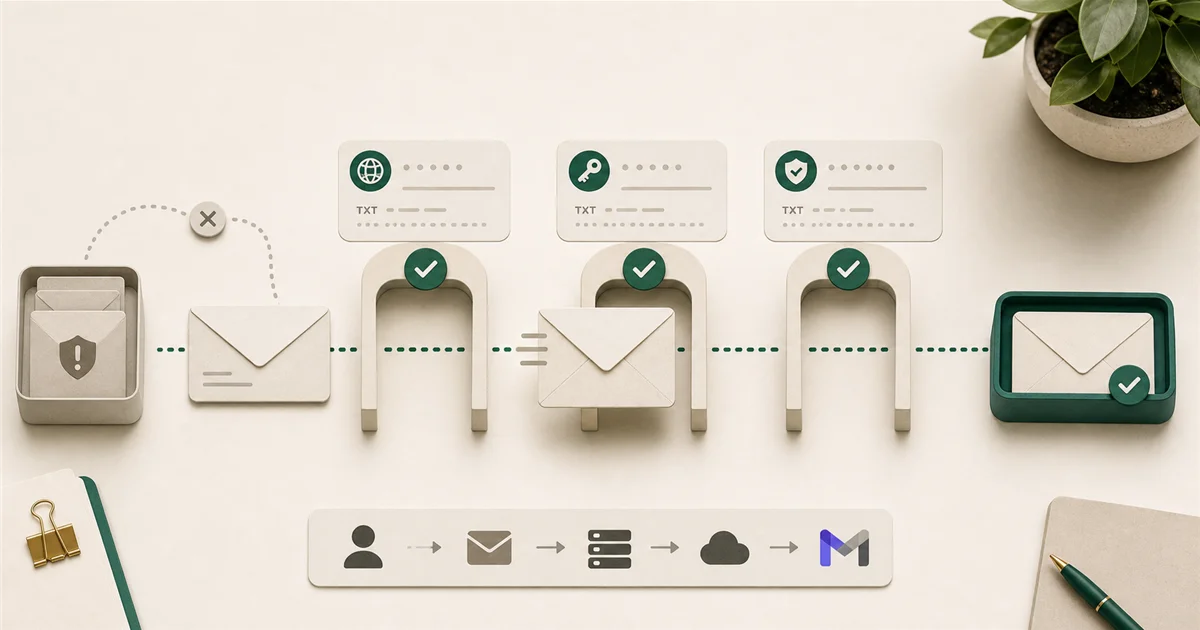
“Clients keep telling me our emails go to their spam folder” is a problem that seems mysterious until you understand how email actually works. The fix, in most cases, is straightforward, but it requires access to your domain’s DNS settings.
Most likely causes
Missing or broken email authentication records. This is the cause in the majority of cases. The three records are:
-
SPF (Sender Policy Framework): A DNS text record that lists the mail servers allowed to send email from your domain. If a server not on that list sends email claiming to be from your domain, inbox providers flag it as suspicious.
-
DKIM (DomainKeys Identified Mail): A digital signature added to outgoing email. The receiving mail server checks the signature against a public key in your DNS. If the signature matches, the email wasn’t tampered with in transit.
-
DMARC (Domain-based Message Authentication, Reporting, and Conformance): A policy that tells inbox providers (Gmail, Outlook, Yahoo) what to do when SPF or DKIM fails: ignore it, send it to spam, or reject it outright. It also generates reports so you can see what’s happening.
Want to see where your domain stands right now? Run our free Email Health Check to test your SPF, DKIM, DMARC, MX, and Blacklist status in one go.
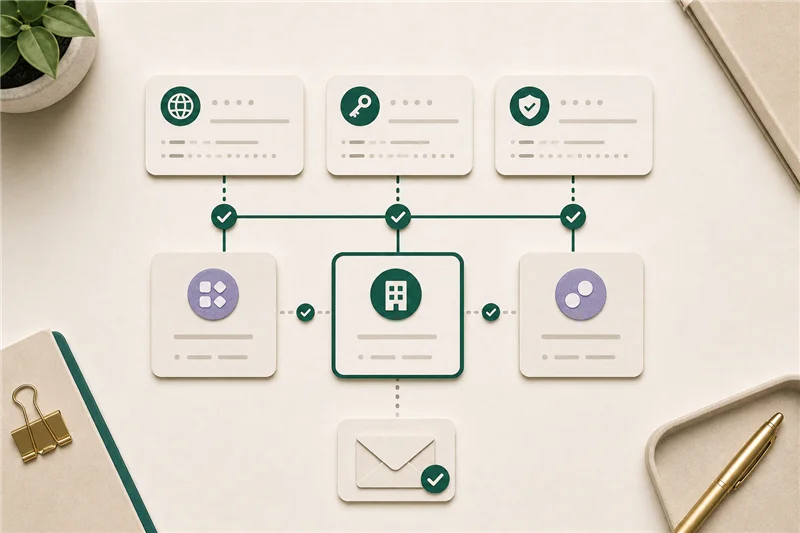
Think of DNS as the internet’s address book. It maps domain names to servers and stores records like these. You set these records at your domain registrar or DNS host (GoDaddy, Namecheap, Cloudflare, or similar), not inside Microsoft 365 or Google Workspace directly.
Sending from a new domain with no reputation. Inbox providers build trust in domains over time. A brand-new domain sending large volumes of email will land in spam regardless of authentication.
High bounce rates or spam complaints. If recipients mark your emails as spam, or if emails bounce repeatedly because addresses don’t exist, your sending reputation suffers.
What to check first
Step 1: Check whether SPF, DKIM, and DMARC are set up. You can audit your entire domain’s setup instantly using our Email Health Check. It runs MX, SPF, DKIM, DMARC, and Blacklist checks in parallel and gives you a clear grade and plan of action. If any are missing, that is your starting point.
Step 2: Set up SPF. An SPF record for a Microsoft 365 domain looks like:
v=spf1 include:spf.protection.outlook.com -allFor Google Workspace:
v=spf1 include:_spf.google.com ~allAdd this as a TXT record at your DNS host. If you use third-party tools to send email (Mailchimp, HubSpot, QuickBooks), add their SPF includes as well. Important: SPF has a hard limit of 10 DNS lookups. Exceeding it causes authentication failures.
Step 3: Enable DKIM in Microsoft 365 or Google Workspace.
Microsoft 365: Sign in to the Microsoft 365 Defender admin portal, go to Email & Collaboration > Policies & Rules > Threat Policies > Email Authentication Settings > DKIM, and enable DKIM signing for your domain.
Google Workspace: Admin Console > Apps > Google Workspace > Gmail > Authenticate email. Generate the DKIM key and add it to your DNS as a TXT record.
Step 4: Add a DMARC record starting with monitor-only.
A safe starting DMARC record:
v=DMARC1; p=none; rua=mailto:[email protected]The p=none means “don’t do anything with failures yet; just send me reports.” The rua address is where DMARC aggregate reports will be sent. Once your record is live, confirm it is valid with our DMARC Check. To read the aggregate reports themselves, a dedicated DMARC report analyzer can parse the raw XML into plain English.
After a few weeks of monitoring and confirming legitimate email is passing authentication, move to p=quarantine (send failures to spam) and eventually p=reject (block failures outright).
Step 5: Check Google Postmaster Tools if your primary concern is Google/Gmail deliverability. It’s a free tool that shows your domain’s reputation and whether your authentication is passing.
When to escalate
If you’ve set up all three records and email is still landing in spam, consider escalating to a deliverability specialist or your managed IT provider when:
- Your domain’s sending reputation is already damaged from a prior spam incident
- You’re sending marketing emails to large lists and aren’t sure about DMARC alignment for your email platform
- DMARC reports show a large volume of failures from sources you don’t recognize (potential domain spoofing)
How to prevent it next time
Align third-party senders. If you use Mailchimp, QuickBooks Online, a CRM, or any other tool that sends email on behalf of your domain, each one needs its own DKIM key set up and included in your SPF record. This is the most commonly missed step. DMARC can be correctly configured for your primary mail provider but still fail for email sent by a third-party tool.
Don’t jump to p=reject too fast. Moving DMARC from p=none to p=reject without adequate monitoring is the most common setup mistake. Any legitimate mail that isn’t passing authentication (including emails from your CRM or invoicing tool) will be silently rejected.
Monitor email bounce rates. If a newsletter or invoice delivery campaign generates significant bounces, clean the list before continuing to send.
Sources
More from the journal
Keep reading the surrounding signals

Why Outlook Keeps Asking for Your Password (and How to Stop It)
Repeated Outlook password prompts are almost always caused by stale saved credentials or an outdated sign-in method — both fixable in minutes.
Read note
What to Do When an Employee Leaves: An IT Offboarding Checklist
Block the account and revoke sessions first, within minutes, not days. Everything else follows in order. Here's the full checklist for Microsoft 365 and Google Workspace.
Read note
How to Recognize and Respond to a Phishing Attack
The first 60 minutes after a suspected phishing click matter most. Block the account, revoke sessions, change the password, in that order.
Read note